| Scenic Mobile Station v1 | |
|---|---|
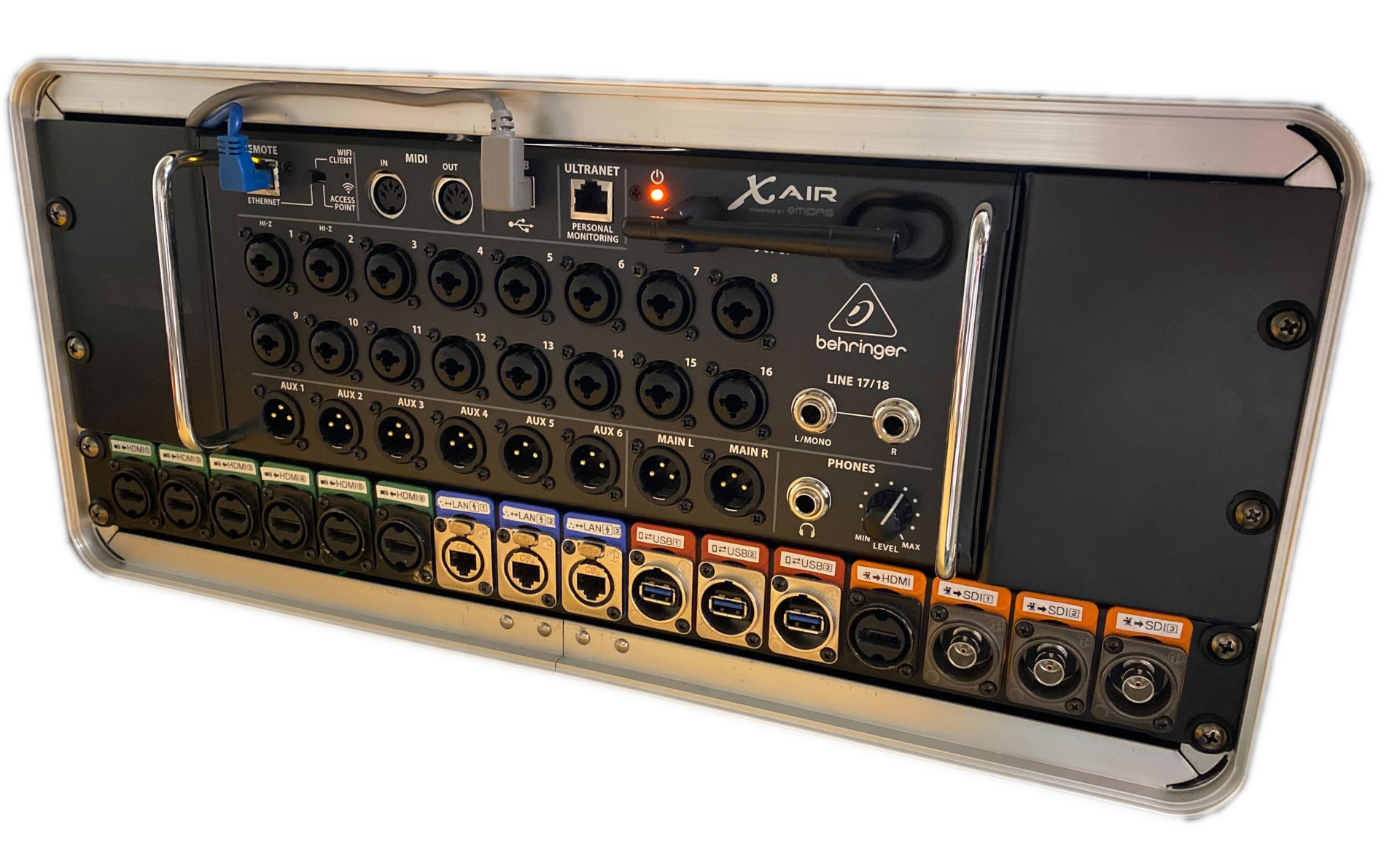 |
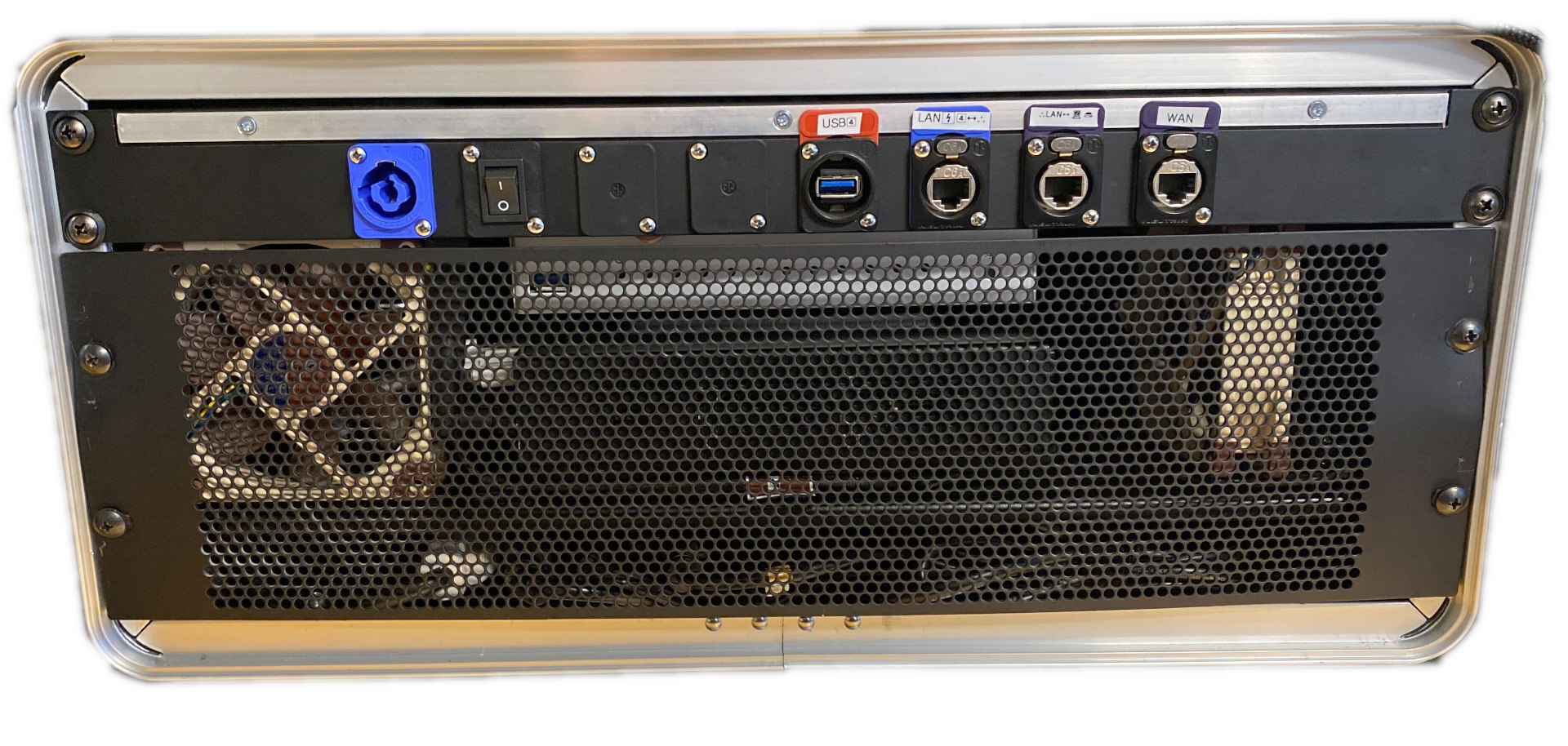 |
| Stage Side | Service Side |
The Scenic station connects professional stage equipment to other venues equipped with a Scenic station via the Internet. Developed as open-source software, the Scenic application—which manages the heart of the station—is ideal for developing new forms of creation and distribution by integrating telepresence and remote control of audiovisual and IT equipment. In short, the Scenic station enables both stage telepresence and web event streaming by offering:
- Ultra-low latency audio and video compression/decompression;
- Centralized management of multiple incoming and outgoing audio, video, and data streams;
- Easy connection to professional equipment;
- Transmission of audio and video streams over the local network using the NDI® standard.
Physical and hardware specifications
Dimensions and weight
Length: 36.83 cmWidth: 53.98 cm
Height: 29.85 cm
Total weight: ≈10 kg
Transport conditions
The station is installed inside a Gator 3U case with recessed wheels, a telescopic handle, and an ergonomic carrying handle.
This station is designed to be easily transportable and can be placed in a standard vehicle seat, carried in the case, or taken as hand luggage when traveling by plane. Given the delicate nature of the contents, it is best to handle the enclosure with care and avoid shocks and impacts. The recessed wheels can be used on a flat surface or within a building with a smooth floor. It is also advised not to send the case as checked baggage when traveling by plane.
Built-in equipment
| Computer | Lenovo Thinkstation P3 Tiny Workstation |
|---|---|
| Graphics Card | 4GB NVIDIA Quadro P1000 Pro Series 5K PCIe low profile |
| Video Capture Card | Magewell Eco Capture M.2 Quad SDI |
| Router | Turris Omnia |
| Network Switch | TP-Link TL-SG1005P 5-port (4 PoE+) |
| Audio Console | Behringer XR18 |
| Video Converter | Blackmagic Design MicroConverter BiDirectional SDI/HDMI 3G |
| Power Strip | Cyberpower (not rated for 220V) |
| Cooling | Noctua NF-A9 5V PWM |
| Fan Controller | Noctua NA-FC1 |
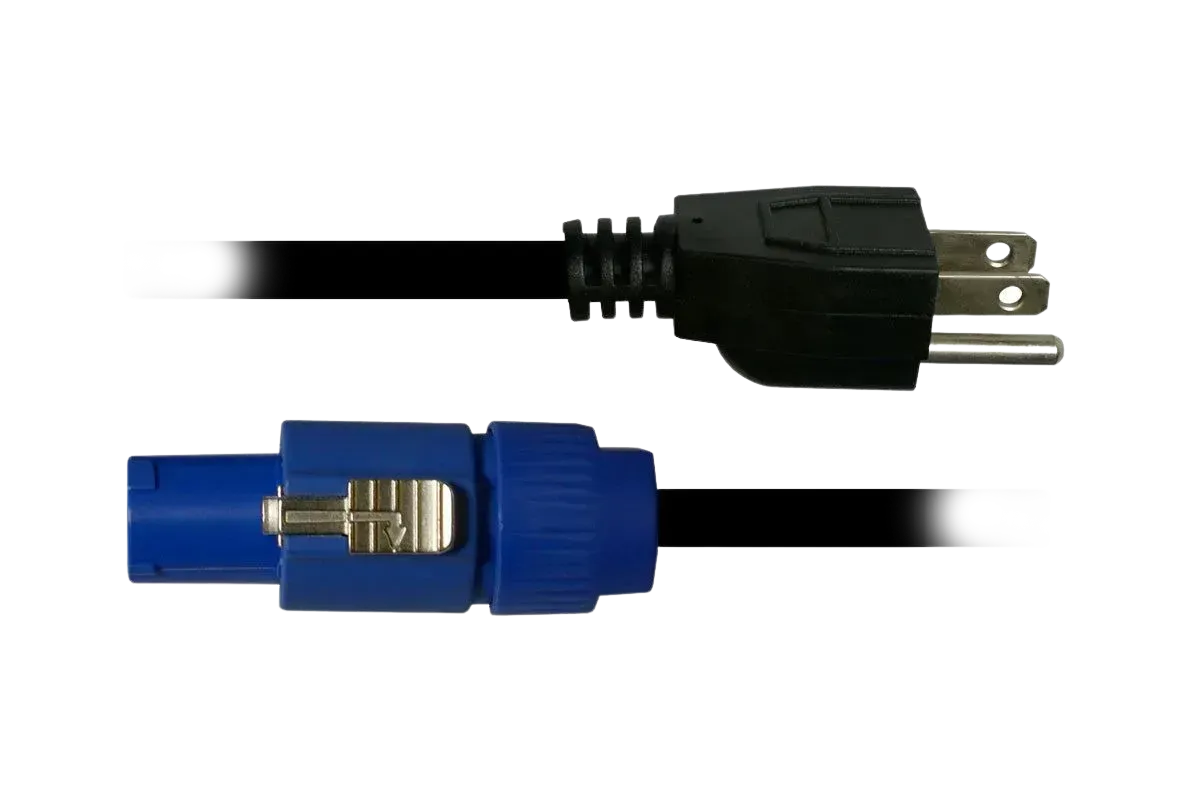
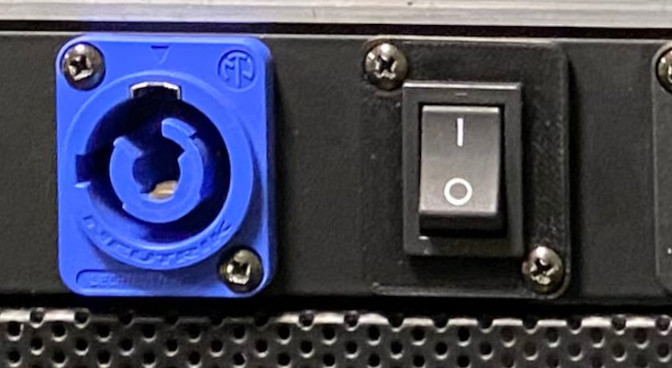
| Power Connector | PowerCon Neutrik NAC3MPXXA 1x |
| Ethernet Connectors | Neutrik NE8FDX-Y6 Cat6A IDC D-Type 6x |
| USB Connectors | Neutrik NAUSB3-B USB3.0 D-Mount 4x |
| HDMI Connectors | Neutrik NAHDMI-W-B HDMI Female Pass Thru 7x |
| SDI Connectors | Neutrik NBB75DFIB-P 3x |
Connectors
Power
 |
 |
|---|
¶ Note
Before powering the station, please connect the desired video peripherals to the HDMI outputs, as the computer initializes these ports during boot. Otherwise, you will need to enable the output using the ARandR software, detailed here.
Video
Video Inputs
 |
|---|
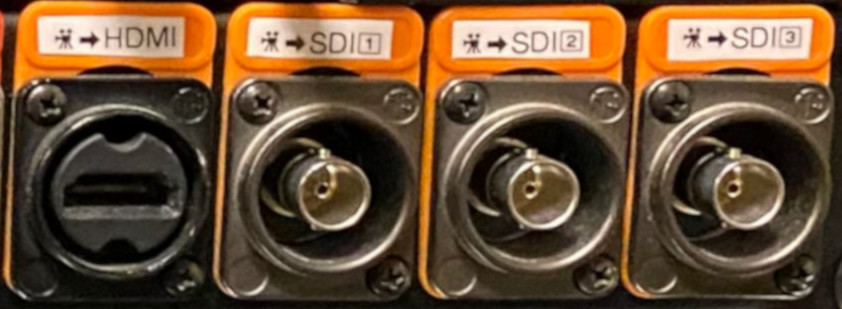
The station has four video input connectors marked with orange labels, capable of capturing up to 3G-SDI (up to 1080p 60fps). The first input is an HDMI connector for universal compatibility, while the other three are standard BNC connectors for higher-end systems. In the Scenic matrix, these inputs correspond to video inputs HDMI, SDI 1, SDI 2, and SDI 3.
¶ Note
Many additional software video inputs can be created using the network NDI option, covered in the Network section.
Video Outputs
 |
|---|
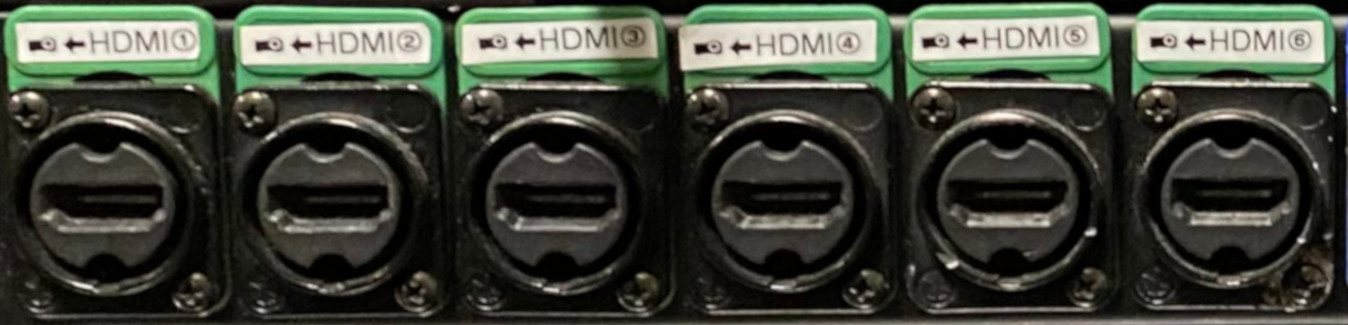
Six HDMI outputs are available, identified by green labels. They can be connected to projectors, monitors/screens, video switchers, or any other compatible system. Note that the first four outputs are connected to the Nvidia graphics card (GPU) and are named by the computer as DP-1, DP-3, DP-5, and DP-7 (based on their order on the patchbay). The last two outputs are connected to the internal Intel GPU and are named HDMI-1 thru 3 and HDMI-1 thru 4.
Remember to connect all desired video peripherals before powering on the station; this will correctly configure the outputs. If you want to add video outputs after startup, you will need to enable them manually using ARandR, which is covered in more detail in the third section dedicated to software.
In other words, if all six video outputs are connected during station startup, you should see the following list of available outputs in the Scenic software:
| Output HDMI 1 | DP-1 | Output HDMI 2 | DP-3 | |
| Output HDMI 3 | DP-5 | Output HDMI 4 | DP-7 | |
| Output HDMI 5 | HDMI-1 thru 3 | Output HDMI 6 | HDMI-1 thru 4 |
Audio
 |
|---|
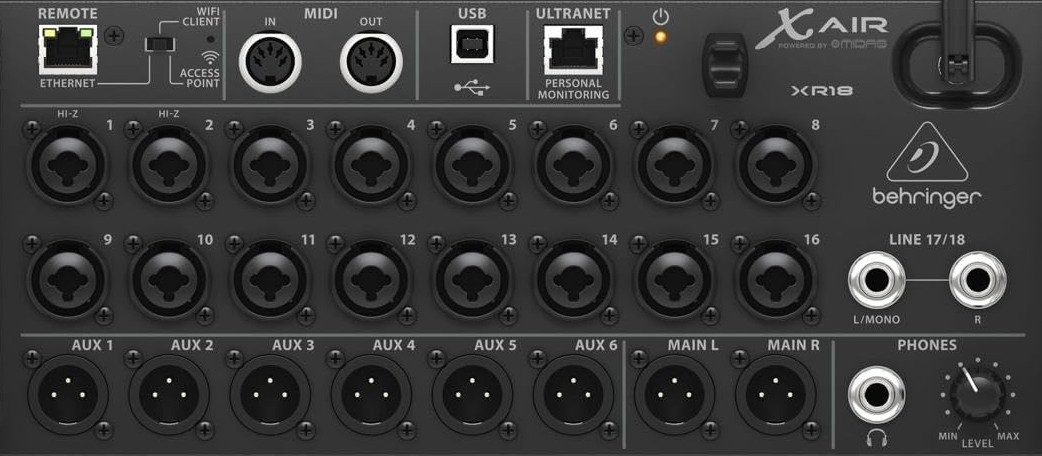
This version of the mobile station is equipped with a Behringer XR18 interface providing eighteen inputs, six auxiliary outputs, and a stereo main output, as shown above. Inputs 1 through 16 can be XLR or 1/4" TRS/TS, while inputs 17 and 18 are 1/4" TRS/TS only.
¶ Note
To learn more about how this interface works, consult the documentation here.
Network
 |
 |
|---|
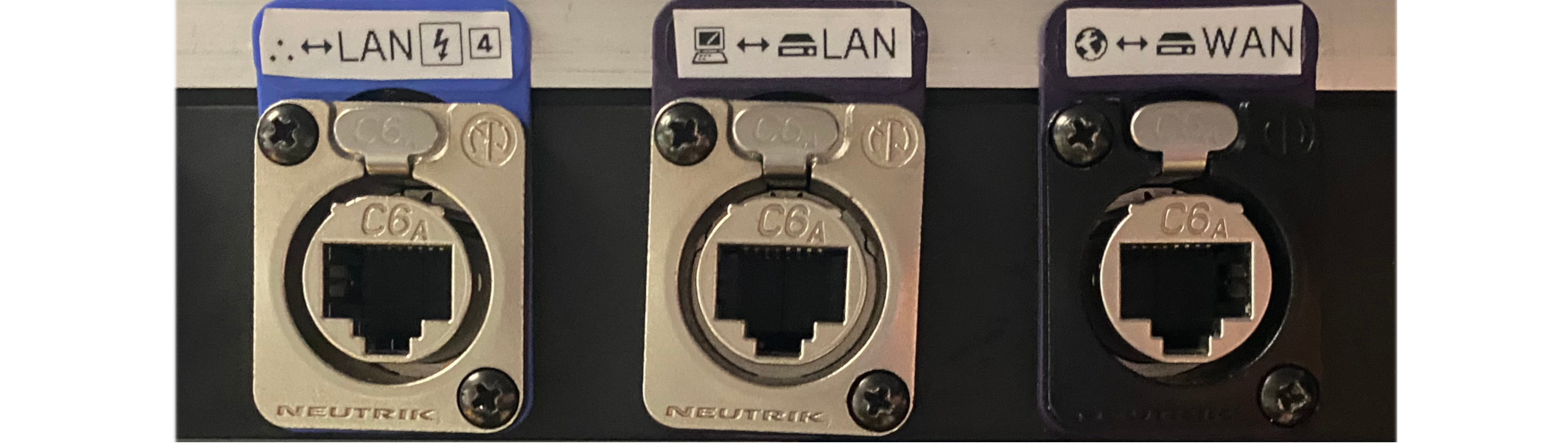
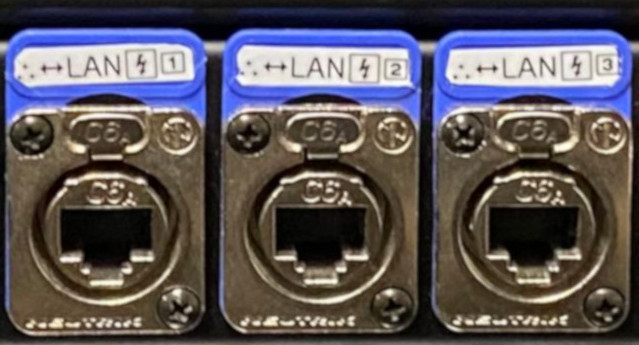
The station includes three types of Ethernet connectors as well as a wireless network to meet different needs. The following section provides a detailed description of each of these parts.
¶ Note
The station’s internal router will assign your computer and other connected devices a private IP address in the 10.231.0.0/24 subnet.
WAN connector
¶ Note
If you do not plug in the WAN port, you can still use the station for local projects as a multimedia patchbay.
¶ Warning
If you connect to an Internet service provided by an institution, you may encounter limitations due to their firewall configuration, which is beyond our control. In that case, please contact your institution’s IT team and explain your needs.
LAN connector
¶ Note
Unlike the other PoE+ LAN connectors (with a blue label), this port does not supply power to the connected device and can therefore be used safely with systems that do not support PoE power negotiation.
LAN PoE+ connectors
¶ Note
NDI-compatible systems connected this way will be visible in the Network/NDI section of the Scenic software matrix.
¶ Warning
Ensure that any device you connect to a LAN PoE+ port can negotiate power. Otherwise, you may experience issues. Some devices with Ethernet ports are not designed to handle incoming power and may suffer irreversible damage. If in doubt, consult the user manual for the device you plan to connect.
WLAN Network [WiFi]
¶ Note
You can also send or receive NDI streams over this network.
USB
 |
|---|
¶ Note
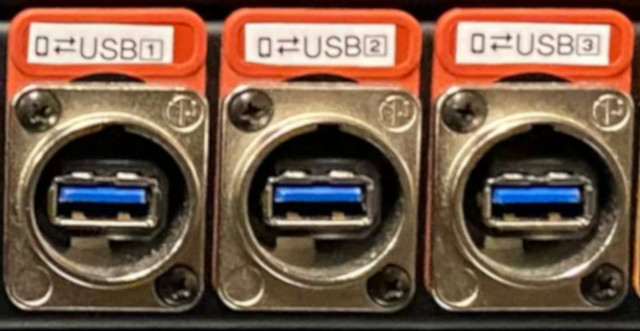
These connectors can be useful if you want to control the Scenic software suite directly from the station itself.
Computer system and software
Operating System (OS): Scenic OS based on the Ubuntu 22.04 Linux distribution
¶ Main installed software
- Scenic :: main tool for transmitting streams (audio, video, control, etc.) to a remote station over a wide area network;
- X-Air-Edit :: control application for the Behringer XR18 audio mixer, allowing you to switch each channel’s source (external or internal), adjust gain, and apply automatic signal processing such as a noise gate.
For more information on how this application works, see the documentation here. - ARandR :: enables activating and deactivating video outputs
- OBS Studio is a free and open software for video recording and live streaming on the web. It can be used alongside the Scenic application via inter-application NDI audiovisual transmission. This application allows you to perform various image processing tasks such as chroma keying, cropping video frames, trimming the video broadcast frame, and other features suited for streaming a telepresence event on a web platform.
¶ Note
For the Scenic Mobile V1 station, the Scenic and X-AIR-Edit programs must be opened at each startup.
Application icons
The taskbar at the bottom of the screen provides quick links to applications.
Some of the most important ones to know include the main menu, terminal access, ARandR video output management, and audio controls with Q-SYS. The Catia, Sonobus and OBS applications also offer useful but optional utilities.

¶ Note
-
If you control the stations from their LAN/WLAN network, you will find the control panel and application icons at: http://10.231.0.10:3000/
-
If you control the station from its internal computer using a mouse, keyboard, and monitor connected directly to the station, you will find these icons on the main desktop shown on your monitor.
| Applications menu |  |
Provides access to all applications installed on the Scenic station’s computer. |
| Scenic |  |
Starts Scenic. Desktop icon available only when the station is used as a control interface. Otherwise, in headless mode, use the following address: http://10.231.0.10:8080/?endpoint=10.231.0.10:8000 |
| Q-SYS |  |
For Mobile Station V2 Audio control interface for the QSC CORE 8FLEX |
| X-AIR-Edit |  |
For Pro / Mobile V1 Station Audio control interface for the Behringer XR18. |
| ARandR |  |
Simple visual interface for monitor layout. |
| OBS Studio |  |
An open-source screen capture and streaming tool for additional image handling. |
| Sonobus |  |
Low-latency, high-quality peer-to-peer audio streaming between devices over the Internet or a local network. |
Control the station
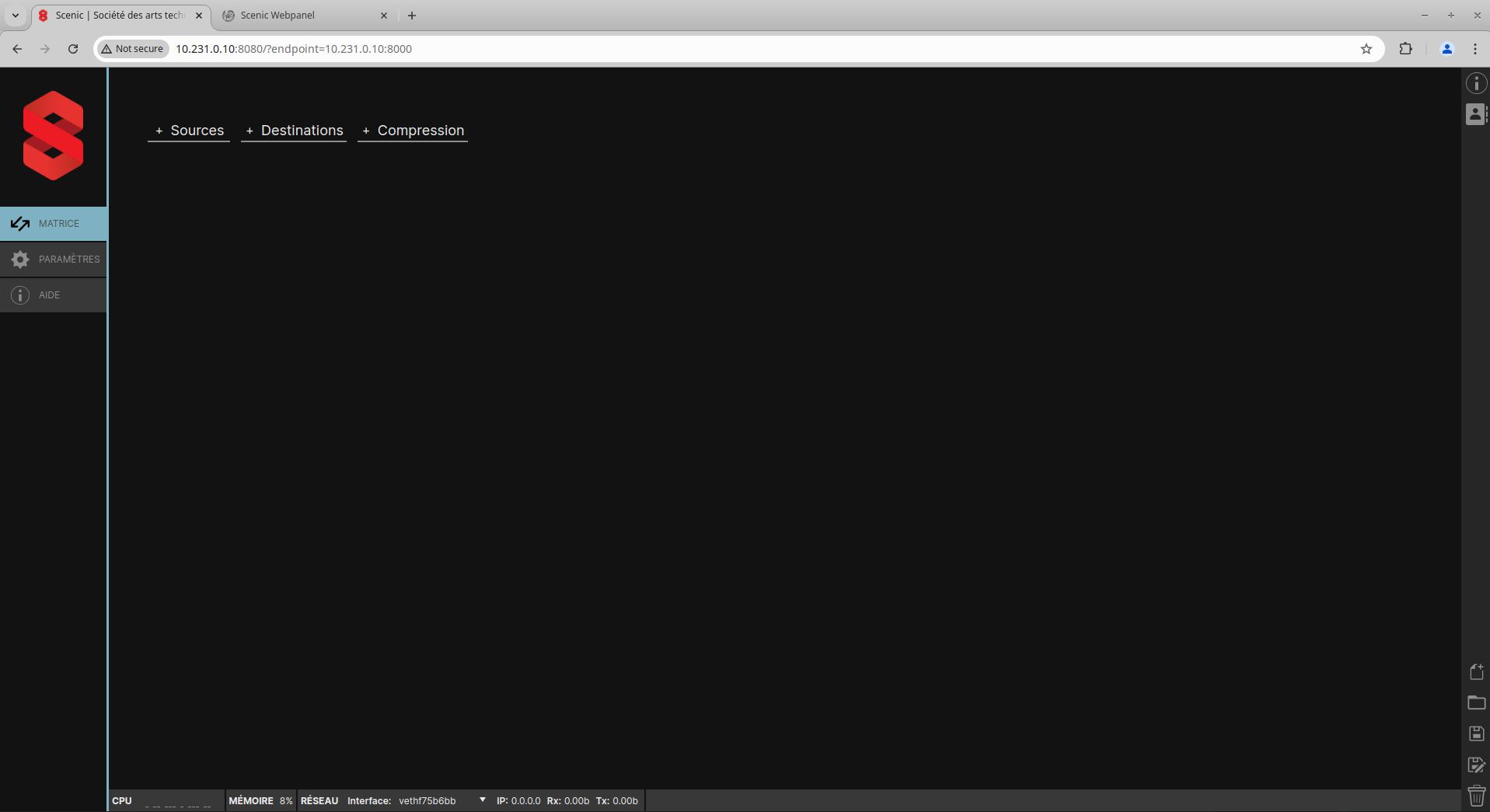
This section explains how to connect to the Scenic application and its workspace depending on the method you choose.
To directly view how the Scenic application works, see the documentation here.
 |
 |
|---|---|
| Scenic Application | Desktop / Webpanel |
Connecting to the station
There are two different approaches to control the mobile station:
- The first, called headless, is recommended. It involves connecting to the station’s network to control it from your own computer. This can be done via WiFi (WLAN) or wired Ethernet (LAN).
- The other is to add a keyboard, mouse, and monitor and use the station’s internal computer as a workstation.
¶ Warning
It is not recommended to use both the headless and direct-monitor approaches simultaneously, as this can cause synchronization issues. If multiple people need to intervene at the same time, the headless approach is preferred.
WLAN Headless (wireless)
Required hardware:
- Scenic Mobile Station
- Laptop or desktop computer with WLAN (WiFi) capability
Steps
-
Power the Scenic Mobile system using the Neutrik power cable and the power switch. Allow the computer and router to start and boot for one to two minutes.
-
The WLAN (WiFi) networks ScenicMobile-XXXX 5GHz and ScenicMobile-XXXX 2.4GHz should appear, where XXXX corresponds to a unique identifier for your station.
-
Using your personal computer (laptop or desktop), connect to the ScenicMobile-XXXX 5GHz network using the appropriate credentials. The router inside the station should assign your personal computer and other connected devices an IP address in the private subnet 10.231.0.0/24.
-
Once connected to the wireless network, open a web browser (ideally Google Chrome or Mozilla Firefox) and open two separate tabs to access the following addresses:
-
Scenic Web App:
http://10.231.0.10:8080/?endpoint=10.231.0.10:8000
This address provides access to the Scenic web application to control the Scenic matrix and connected partners. Anyone connected to the same subnet can access the web application simultaneously, making control and monitoring easier in many situations. -
Scenic WebPanel:
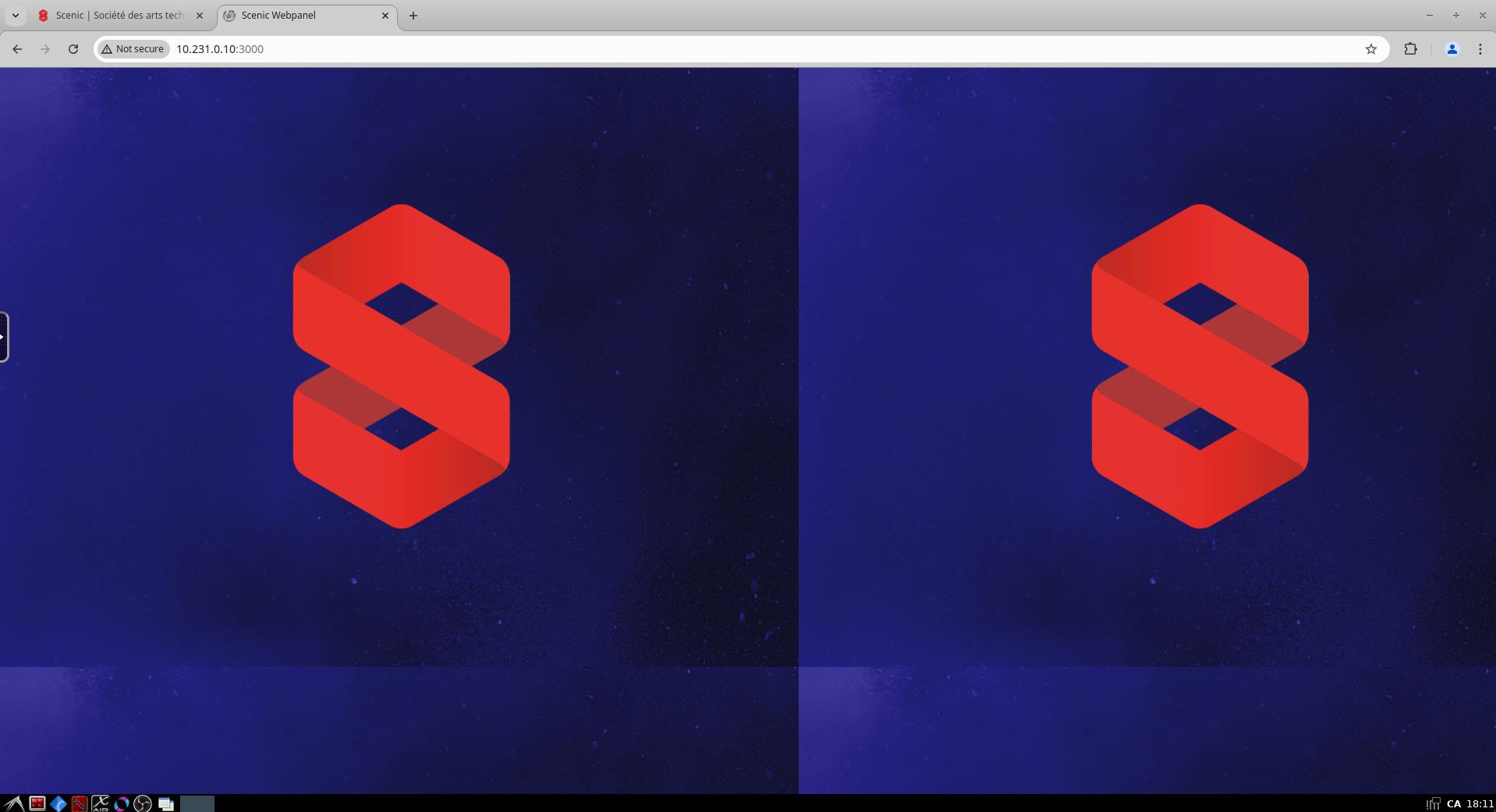
http://10.231.0.10:3000/
This address provides access to the desktop web panel environment, which allows using other software besides Scenic that may be useful for station control. Anyone connected to the same subnet can access the web panel simultaneously, which also aids control and monitoring.
- It is recommended to bookmark these tabs and name them Scenic Web App and Scenic WebPanel to simplify future connections.
-
LAN Headless (wired)
Required hardware:
- Scenic Mobile Station
- Laptop or desktop computer with an Ethernet port
- Ethernet cable
Steps
-
Power the Scenic Mobile system using the Neutrik power cable and the power switch. Allow the computer and router to start and boot for one to two minutes.
-
Connect your personal computer (laptop or desktop) with an Ethernet cable to the LAN connector marked with a purple indicator.
Your computer should receive an IP address in the 10.231.0.0/24 subnet. -
Once connected to the network, open a web browser (ideally Google Chrome or Mozilla Firefox) and open two separate tabs to access the following addresses:
-
Scenic Web App:
http://10.231.0.10:8080/?endpoint=10.231.0.10:8000
This address provides access to the Scenic web application for controlling the Scenic matrix and connected partners. Anyone connected to the same subnet can access the web application simultaneously, making it easier to control and monitor in many situations. -
Scenic WebPanel:
http://10.231.0.10:3000/
This address provides access to the desktop web panel environment, which allows using other software besides Scenic, potentially useful for controlling the station. Anyone connected to the same subnet can access the web panel simultaneously, which also aids control and monitoring.
- It is recommended to bookmark these tabs and name them Scenic Web App and Scenic WebPanel to simplify future connections.
-
Scenic Station as a control workstation with a monitor
- Scenic Mobile Station
- Mouse / Keyboard
- Monitor and HDMI cable
Steps
- Before powering on the station, connect your monitor to HDMI output 1. Connect a mouse and keyboard to the USB ports.
- Turn on the Scenic Mobile station using the Neutrik power cable and the power switch, then allow the computer and router to start and boot for about one minute.
- Once booted, the Scenic logo should appear on your monitor. At this point, you have access to the system desktop environment and can launch the Scenic application from the taskbar menu.