
Scenic is an application released under the GPL v3 license that enables independent routing and simultaneous exchange of multiple audio, video, and data signals in real time between various peripheral devices connected to a Scenic station, both local and remote. This solution supports the development of scenographic telepresence practices by facilitating exchanges between geographically distant spaces. To do this, Scenic’s software interface provides a simple matrix to connect local or remote media sources to local outputs and connected partners.
Please refer to the following links to learn how to access the software suite included in a Scenic station:
Operating a Scenic Mobile Station v1
Operating a Scenic Mobile Station v2
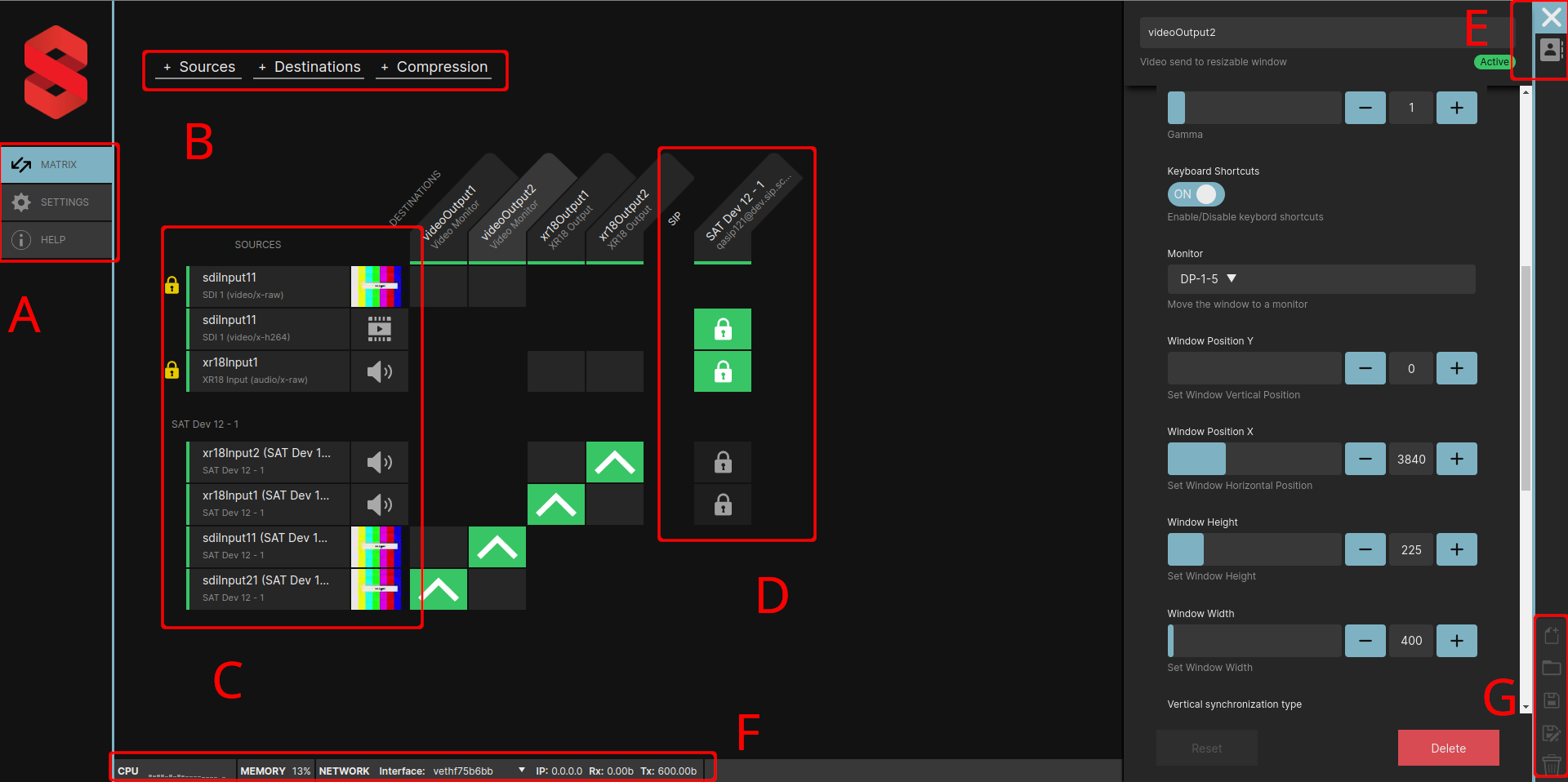 |
A = Global menu B = Sources & destinations menus C = Source information D = Session partners E = Properties & contacts F = Compute and network resources G = Project functions |
A - Menu
A global menu located on the left side of the Scenic interface provides access to the application’s different tabs.
Matrix tab
A source can be a video camera, a computer, a microphone, the output of a sound console, a MIDI or OSC peripheral device connected directly to the Scenic station, or a source coming from another Scenic station.
A destination can be a video monitor (a video window corresponding to one of the HDMI output ports on the station), an audio output channel on the station (QSYS or XR18, depending on your station version), another Scenic station (SIP session partners), or a sending port for OSC or MIDI data.
When signals are compatible, the matrix allows assigning a source to a destination. For example, a camera (source) and a video monitor (destination) can be connected together because they are compatible formats (video). Similarly, an audio signal from a SIP session partner (source) can be assigned to a local audio output (destination) because they are compatible formats (audio).
Settings tab
The settings tab contains the general and SIP connection configurations required for using the station.General
¶ Language
The display language of the Scenic application can be French (default) or English. You can change it from the dropdown menu.
¶ Show thumbnails
Thumbnail previews appear automatically with video sources to preview available content. These thumbnails are generated at a rate of one image per second to avoid using unnecessary CPU load. However, in some cases it can be useful to free as much CPU as possible, especially during a heavy session, so disabling thumbnails to save CPU capacity may be a viable option.
¶ Show encoders
Video encoders appear automatically with video sources when a local video source is created. This allows you to distinguish which stream can be routed locally to an HDMI output and which can be sent to a SIP session partner. This information can be combined into a single line to reduce the visual clutter in a Scenic session. If you feel the need to reduce the number of visible source lines, this option allows you to do so.
SIP
SIP settings are provided with the purchase of a Scenic station and allow you to connect to the Scenic station network. The SIP credentials let you connect to the server that links the stations and ensures minimal latency between one or more interconnected stations.¶ SIP settings
-
SIP server: the address of the operating SIP server (e.g., sip.scenic.sat.qc.ca);
-
SIP port: the port number used during SIP calls (default: 5060). If you get a “SIP port not available” error, you can try using port 5061 or 5062.
-
SIP username: the username for the SIP account;
-
SIP password: the password associated with the SIP account;
¶ STUN/TURN settings
It is recommended to keep the same data as your SIP settings for this section; by default, the credentials used for STUN/TURN servers are the same as those for the SIP server. You can modify them by disabling this option if needed.
-
TURN server: network protocol allowing VoIP (Voice over Internet Protocol) applications to traverse NAT (Network Address Translation);
-
TURN username: you can change the TURN server username to be different from the SIP server (developers only);
-
TURN password: you can change the TURN server password to be different from the SIP server (developers only);
-
STUN server: a network protocol that helps traverse remote networks.
Help tab
This tab provides some details and links to find the web pages of this wiki, including the user manual you are currently reading and the wiki home page. It also gives access to the web page documenting the telepresence projects developed with Scenic technology.
You will also find a list of developers and testers associated with the project, as well as general information about the Society for Arts and Technology that supports this technological development initiative.
B - Sources & destinations menus
Sources menu
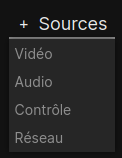 |
This menu allows you to add sources to the Scenic matrix. When a source is created, it appears on the vertical sources axis. You can then configure its parameters if desired.
When you receive sources from another Scenic station, they appear at the bottom of the same vertical axis. |
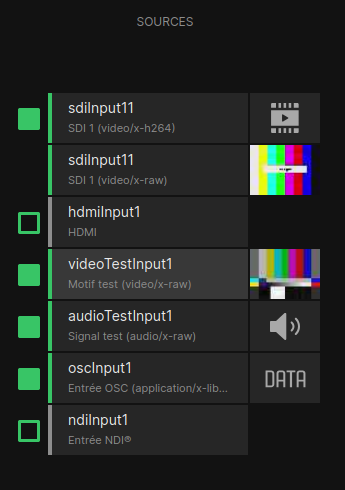 |
When a source is configured and ready to use, simply click the green square to activate it. Once started, a green bar confirming the activation of the source appears to its left. For video sources, you will also see a small preview of the video to its right. Video sources will also produce a second signal labeled Encoded video; this is a compressed version of the video that can be sent to other Scenic stations. |
Video submenu
 |
|
Audio submenu
 |
|
Control submenu
 |
|
Network submenu
 |
|
Destinations menu
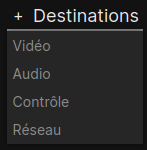 |
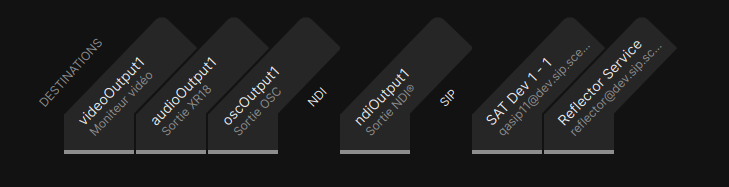
This menu allows you to add destinations to the matrix's horizontal axis. Destinations can be local such as a video monitor, an audio output, an NDI® output, or session partners representing other Scenic stations. |
Video submenu
 |
|
Audio submenu
 |
|
Control submenu
 |
|
Network submenu
 |
|
Compression menu

In most cases, it is not necessary to use this menu to manually create a video encoder. Scenic automatically creates encoded streams for each video source to make it easier to send them to other Scenic stations. The video encoder should be used when you want to transmit an NDI® video stream to a SIP session partner. Audio sources, on the other hand, are not compressed because they are lighter than video.
When creating an encoder, a source and a destination are created, each with the same name. When you assign an uncompressed video source to an encoder on the destinations axis, the compressed stream produced by the encoder becomes available on the sources axis, ready to use.
C - Source information

To obtain information specific to a local or SIP source, simply hover your mouse cursor over the thumbnail or icon of a source in the matrix. A tooltip containing information about the source will appear automatically and then disappear when the cursor is moved. This information can be useful, for example, to know the number of audio channels of a source coming from a SIP partner, in order to assign the same number of channels to the audio destination to which it will be routed in the matrix.
This information is also useful for diagnosing a technical issue or simply knowing the network transmission bitrate (in Mbps) of a source, among other things.
For example, a source with a bitrate of 0 Mbps indicates that the stream is dysfunctional.
Common information for all sources
-
Media type: indicates the media type of the source, whether it is an audio or video stream, compressed (x-h264) or uncompressed (x-raw), etc.
-
Bitrate: indicates the bitrate in Mbps used in real time by the source, either downloading if it comes from a SIP partner or uploading if it is ultimately transmitted to a SIP partner. If this source is transmitted to multiple SIP partners simultaneously, multiply the displayed bitrate by the number of recipients.
Video source-specific information
-
Width: video width in pixels (default: 1920);
-
Height: video height in pixels (default: 1080);
-
Frame rate: number of frames per second (FPS) of the video source (e.g., 30/1 = 30 FPS).
¶ Uncompressed (x-raw)
-
Format: indicates the bitstream standard used to represent a digital image (e.g., YUV 4:2:0 = I420);
-
Interlaced mode: indicates the interlaced scanning technique used (default: progressive).
¶ With compression (x-h264)
- Profile: indicates the H.264 video encoding profile used (default: baseline).
Audio source-specific information
-
Format: indicates the container type (format) used for uncompressed digital audio read/write (e.g., PCM 32-bit floating-point little-endian = F32LE). Audio streams are transmitted without compression (PCM) by Scenic, so they have a constant bitrate.
-
Sampling rate: number of samples per second (Hz) used for digital encoding of the audio signal (default: 48 kHz). This should match the sampling rate of your audio interface performing analog/digital conversion;
-
Channels: number of channels included in the audio source.
D - Session partners
 |
SIP session partners represent other Scenic stations connected via the Internet using the SIP communication protocol. When a contact is added as a session partner, it appears on the DESTINATIONS axis. You can then assign sources to it. Likewise, once connected to the SIP server, sources sent to you by other contacts will be received and displayed automatically in the SOURCES column.
|
E - Properties & contacts
 |
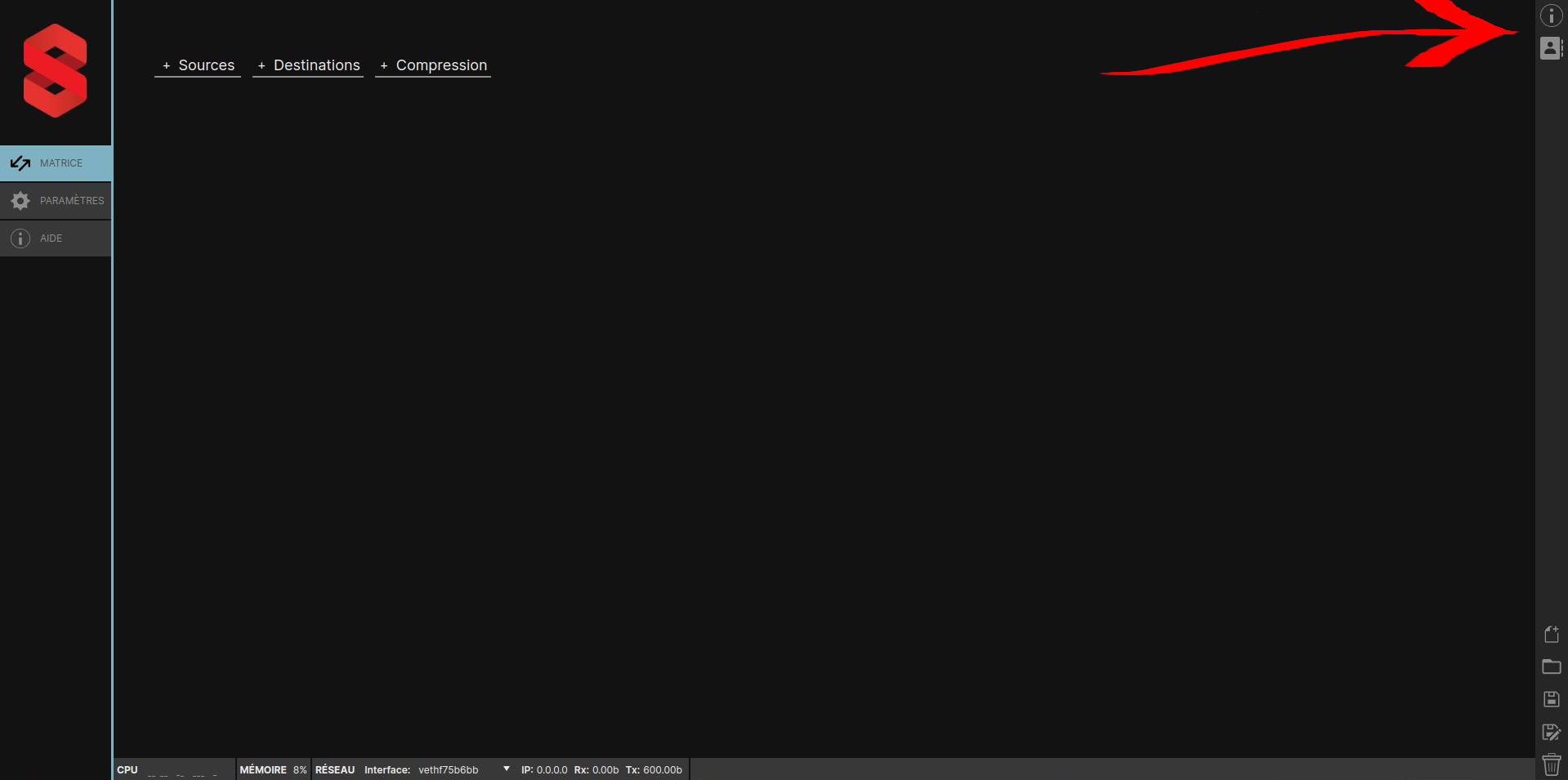
All options found in the sources, destinations, and compression menus are configurable. A configuration panel appears to the right of the matrix when you select a source or a destination. You can also reopen the panel by clicking the properties inspector icon, the i in a circle at the top right. To hide the panel, click anywhere in the matrix or on the properties inspector icon. To modify a source’s settings, it must not be active.
The SIP server connection panel is accessible by clicking the address book icon with a silhouette, located in the same top-right corner of the Scenic window. This is where you enter your credentials to connect to the Scènes Ouvertes SIP server so you can receive and send streams with other stations on the network. |
Settings panel
Below is an overview of the various parameters you will find depending on the option type you have selected.
Video
Video source settings
 |
|
A 5 Mbps video stream requires at least 6 Mbps of bandwidth (5 Mbps + 20% safety margin). If you send 4 identical video streams to a SIP contact, you will need at least 4 x 6 Mbps = 24 Mbps, not counting the bandwidth needed for audio tracks. If you have less bandwidth, you must reduce the bitrate. Conversely, if you have more bandwidth, you can increase the bitrate. If you send the same 4 video streams to two SIP contacts, you will need twice as much bandwidth since you are sending your videos twice, once for each contact. Upload bandwidth is usually more critical due to limits imposed by internet providers.
Test pattern settings
 |
|
Video destination settings
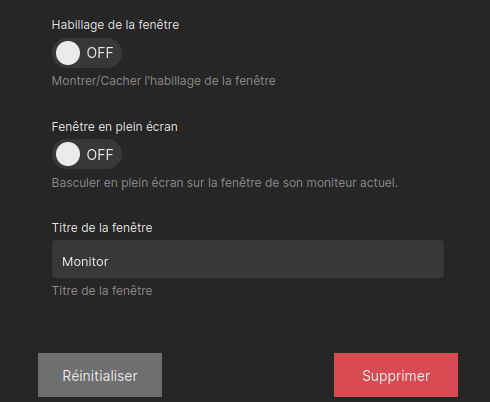
These settings allow you to modify several attributes of the video displays, including overlay configuration, background, and common settings. The text field at the top of the panel lets you rename the selected destination.
 |
Overlay configuration
|
 |
Background configuration Background image: display a custom image as the background of the video monitor when no video is shown. Copy and paste the full path of the image and press ENTER.
|
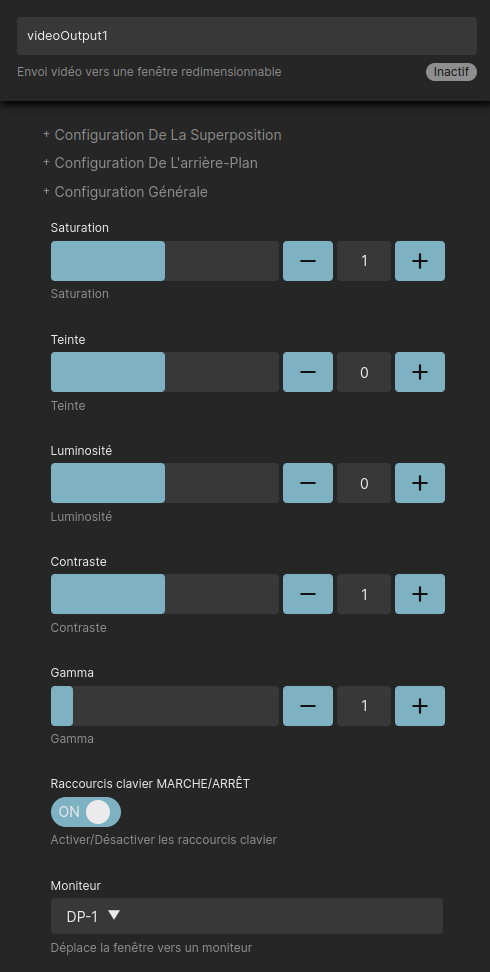 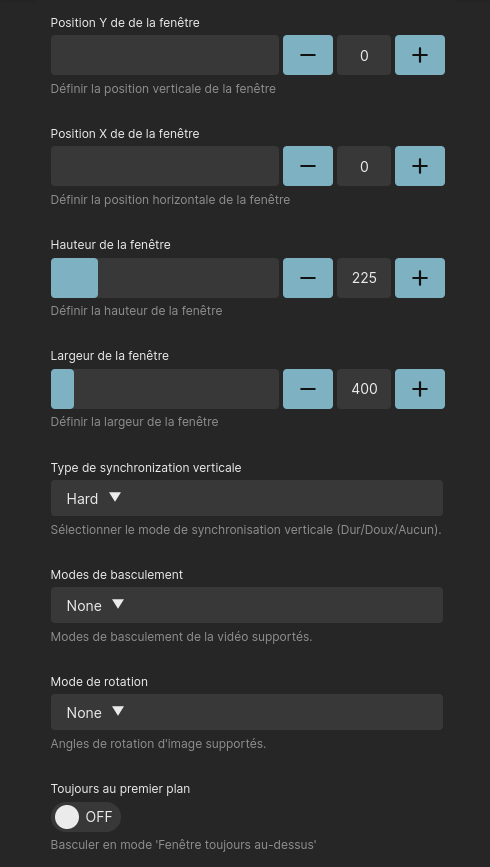  |
Common settings
|
Audio
Audio source settings
 |
|
An audio source can represent one or several audio channels from the audio interface. Combining multiple channels under a single audio source helps reduce the number of visible objects inside a Scenic session. The tradeoff is that these channels must then be connected to consecutive inputs on the audio interface.
For example, for 4 audio sources connected to inputs 1–4 of the audio interface: when creating an audio source, enter 1 in the “Channel” option and 4 in “Number of channels.” This way, a single source with channels 1, 2, 3, and 4 can be sent during a SIP call.
Test tone settings
 |
|
Audio destination settings
 |
|
 |
|
Control
MIDI
It is possible to send MIDI data to a MIDI device connected to the station, as well as to another Scenic station. The MIDI source can be software or hardware.
Important: note that you must always connect MIDI devices before starting Scenic, otherwise they will not be recognized.
MIDI source settings
 |
|
MIDI destination settings
 |
A MIDI destination can be an external peripheral device or software. Just like a MIDI source, a MIDI destination can send data over the Scenic station’s USB ports or the XR18’s MIDI OUT connector.
|
OSC
OSC (Open Sound Control) is a control protocol transmitted over the network. It allows much more advanced and precise control than MIDI or DMX protocols. It is now present in most multimedia software, digital audio or lighting consoles, synthesizers, etc. It can be used with wired or wireless connections. To use an OSC source with **Scenic**, it is important that the source has an IP address on the same local network as SCENIC (LAN).OSC source settings
 |
|
OSC destination settings
 |
To use an OSC destination with Scenic, the destination must have an IP address on the same local network as Scenic (LAN).
|
Network
NDI source settings
An NDI® source can be added to the Scenic interface when an NDI® stream is available on the local network. When creating an NDI® source, a window prompts you to select an NDI® stream from those available on the local network: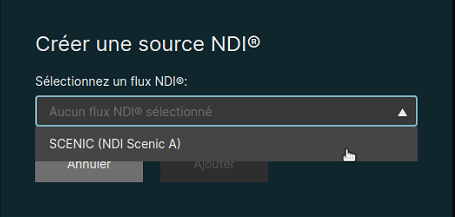 |
|
NDI destination settings
An NDI® destination allows broadcasting an audio and video source on the local network.
 |
|
SIP connection panel
 |
The SIP server connection panel is accessible by clicking the address book icon with a silhouette, located in the top right corner of the Scenic window. This is where you enter your credentials to connect to the Scènes Ouvertes SIP server so you can connect with other Scenic stations on the network. |
SIP Panel (before connection)
 |
¶ Advanced options for SIP connectionYou typically won’t need to change these settings.
|
SIP Panel (after connection)
From this point on, the Scenic station is available on the Scènes Ouvertes SIP network. You can now send and receive streams with your session partners. Other connected SIP partners will see a green bar next to your identifier in their address book, along with the status “Availability: ONLINE” when hovering over your identifier. Similarly, you will see the Scènes Ouvertes network address book populated with SIP contacts for each member.
-
SIP Identifier: At the top of the panel, your identifier name and SIP contact address are displayed;
-
Session Partners: To allow a SIP contact to send sources to you, you must first add them as a session partner. Authorized partners will appear in this section. This feature helps prevent other SIP contacts from sending streams to you unexpectedly.
-
Address Book: All SIP contacts that are members of the Scènes Ouvertes network appear in this directory. You can view their availability and then add one or more of these contacts as session partners.
 |
Availability:
|
 |
|
F - Computational and network resources

|
|
The computational and network resource information panel, located in the lower-left corner of the application, allows you to quickly confirm the CPU and overall memory resource usage by the Scenic application, as well as to verify whether it is connected to the network and how much bandwidth is being used by the current transmission.
Dans l’exemple ci-haut :
|
G - Project functions
 |
In the lower-right corner of the application, there are four icons that allow you to create, save, and import Scenic projects. When saving, all elements of a Scenic session are saved: source and destination configurations, video monitor placement, matrix assignments, and scenes. When SIP sources are present in a session at the time of saving, they are also saved. When the project is reopened, these sources will be accompanied by a red bar and will be inactive until the same sources are resent by the same contact. If those sources were assigned to a destination in the matrix, they will be automatically reassigned upon reception. |